Edit pages
Change your words and pictures while keeping the page as a draft.
Steps
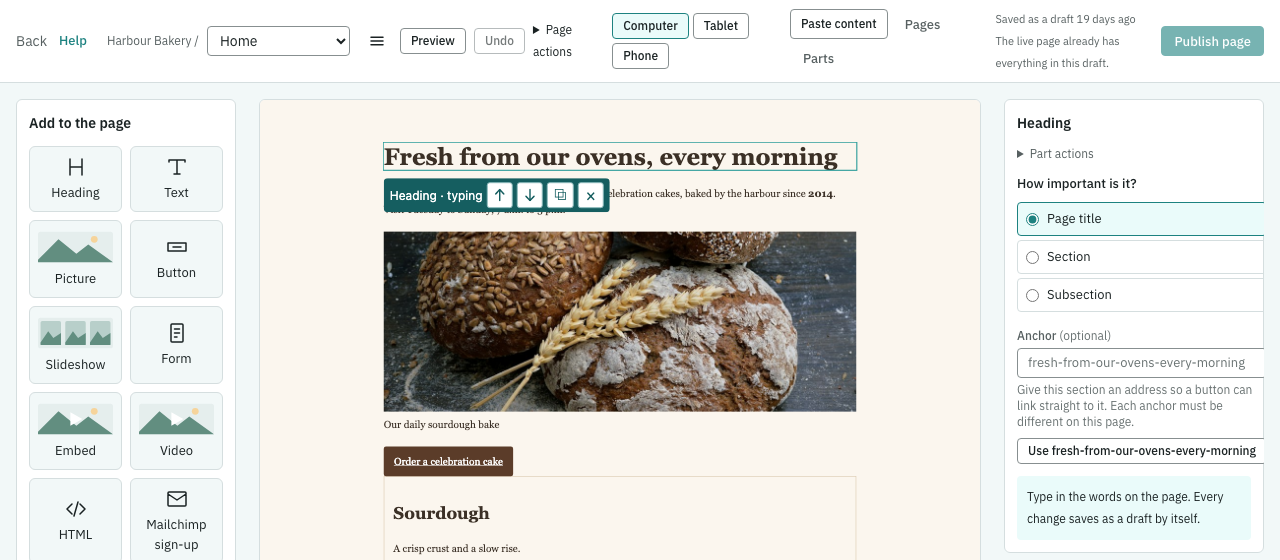
If the menu is hidden, click Open menu first.
- Open Pages and click a page’s name. On a computer, Choose page switches to another page. On a phone, click ‹ (Back to Pages) to return to the list.
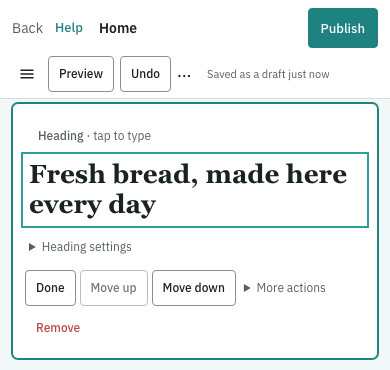
- Click a heading or paragraph on the page and type your words. On a computer, choose Heading or Text under Add to the page to add words. On a phone, edit the words in the content cards and click Add a part to add another part. The area must allow the part you choose.
- Pause after editing. Changes save automatically; wait for Saved as a draft just now. Click Undo if you want to undo an edit.
- Click Preview to check the page. When you’re ready to make the draft the published version, follow the publishing guide.
Expandable answers
Text parts keep expandable answers when you paste or edit them. For example, paste <details><summary>Q</summary>A</details> into a Text part. Open Q to edit its answer. Save, publish and check Preview and the site. The question and answer stay together. The saved open or closed state is kept.
For a group with only one answer open at a time, use an HTML part with the same name on each disclosure:
<details name="faq"><summary>First question</summary>First answer</details>
<details name="faq"><summary>Second question</summary>Second answer</details>
Publish the page to show the change on the site. Text parts containing other formatting the editor cannot hold, such as tables, still open read-only to protect that content.
When pictures load
The first picture loads straight away. Decorative pictures, including section backgrounds far down a page, also load straight away when Load this picture is Automatically. Under Advanced, choose Straight away for another picture that must load before scrolling, or When it scrolls into view to keep that explicit choice. Mark a picture decorative only when it adds no meaning for a reader.
For an AI helper, a decorative background can use:
{ "type": "image", "data": { "mediaId": "<image id>", "decorative": true } }Embed a form, map or video
In the page editor, add an Embed part and choose Pasted link or embed code. Paste a service link or the embed code into Link or embed code. Keel accepts YouTube, Vimeo and Voomly videos, Google Maps, Calendly booking pages, Facebook pages and Typeform forms.
Typeform: paste a share address such as https://form.typeform.com/to/AbCd1234 or https://account.typeform.com/to/AbCd1234. You can also paste <div data-tf-widget="AbCd1234"></div>, including the script if Typeform gave you one. Keel keeps only the form’s frame address; it doesn’t run the pasted script. Live embed code (data-tf-live) uses a configuration ID, not a form ID, so Keel refuses it and asks for the share address or widget code instead. For example, <div data-tf-live="01J5X1H8WM5CSXVDN89WXNX5EB"></div> gets “We couldn’t read this Typeform live embed. Paste its share address, https://form.typeform.com/to/<id> or https://<account>.typeform.com/to/<id>, or its data-tf-widget embed code instead.” For an AI helper, this is a 400 on the part’s data.url. Other Typeform addresses show which share addresses work beside Link or embed code.
Google Maps: paste https://www.google.com/maps/embed/v1/place?key=YOUR_KEY&q=Toronto. Keel rebuilds the map without the API key. Search (v1/search?q=Toronto) and a view (v1/view?center=43.65,-79.38&zoom=15) work too. If the place can’t be read, correct the address in the named field. You can also choose Map and type the place instead.
Voomly: paste the whole video’s embed code or its share address. If its video id is short or malformed (for example, https://share.voomly.com/v/abc123), Link or embed code says “This doesn’t look like a Voomly video id. Paste the video’s share link or embed code.” Collection links still explain that Keel embeds single videos, not collections or other Voomly pages. The embed-build.js script alone has no video in it; the message asks you to paste Voomly’s embed code instead.
Wait for the draft to save, use Preview, then publish the page. Preview and the live page show the same frame. To remove it, select the part and choose Remove. AI helpers remove the part from the region’s parts and save the page.
Use a layout’s draft regions
A page or collection item draft can use a layout’s new regions and part choices before that layout is published. For example, your designer adds a Title region to Article and saves the layout as a draft. Open Ink Lab — Page, add a Heading in Title and save. Edit preview shows that region with the draft layout, as it will appear on Live. A page that uses no new region or part choice keeps using its published layout in Edit preview. Review the page and layout drafts together before publishing; the publishing guide explains how both go live.
Show and sort dates in a collection list
Open the page’s Collection list part. Date to show chooses the saved Date field to display; Date to sort by chooses the field used by Newest first or Oldest first. Both start at Publish date, so existing lists stay as they are. For example, show Event date and sort by Closing date to show each event’s day with the latest closing date first. Choose Publish date again to undo either choice. Show the date can hide it. Missing dates sort last and are not shown; Chosen order keeps your item choices.
A saved Date field may already appear in a collection list while the item’s own page still needs an item design. The item editor’s note names Date to show so you can find the list setting. Dates use the site’s language.
For an AI helper, the same example is:
{"type":"collectionList","data":{"collection":"<collection-id>","dateField":"event-date","sortDateField":"closing-date","order":"newest","limit":10}}Use a Date field from this collection. An unknown field or a field of another type is refused with 400 beside data.dateField or data.sortDateField: “Choose a Date field from this collection, or use Publish date.” Save and publish check the same choices.
Page and collection addresses
Use lowercase letters, numbers, hyphens and underscores, with single hyphens between words. For example, a page can keep /about_us, a collection /photo_galleries, and an item /news/my_post from an imported site. Set Address when creating or renaming a page, in collection settings or in the item editor. Keel keeps the address exactly as you type it: capitals and spaces are refused with a message beside Address, not changed for you. For example, About_Us and about us are refused, and about_us is accepted. The API refuses them the same way, with a 400 naming slug. Other invalid input also shows a message beside the named field; correct it before saving. about_us and about-us are different addresses. Old address links can send visitors from one to the other. Preview and Live keep the address you saved.
If something goes wrong
If an edit needs attention, fix the named part. Other valid edits can still save. If someone else saved first, read the choice shown before replacing their work. Keep the screen open until saving finishes, and check your words after reconnecting.