Publish your changes
Make a checked draft the version your site serves.
Steps
If the menu is hidden, click Open menu first.
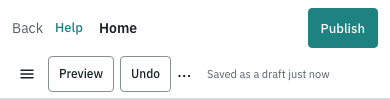
- Open a page from Pages. Wait for its draft to save and click Preview to check the words, pictures and links.
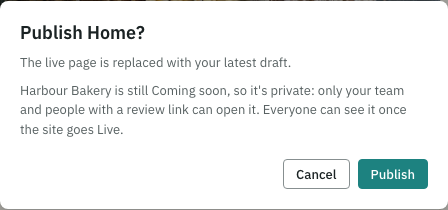
- Click Publish page in the page editor. On a phone its visible text is Publish. Read the confirmation, then click Publish in that confirmation.
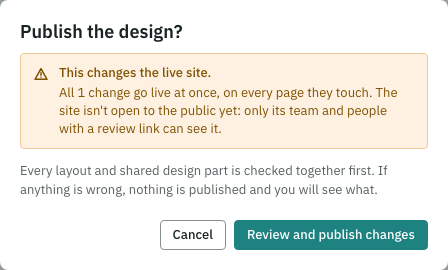
- For shared design changes, a site administrator opens Publish design changes from the menu. Check every changed part, then click Publish design changes and confirm. These design changes publish together.
- Publishing does not open a private site to everyone. When the home page is published and ready, follow the going Live guide.
Check search details in Preview
Fill in the draft’s search details, save and open Preview. The page’s head contains the title, description, canonical address, Open Graph and Twitter details and structured data that Live would use, plus noindex. Canonical and Open Graph addresses point at the page’s live address, such as https://example.com/en/meet-us. A never-published draft has no publication dates yet. Preview does not run analytics, integrations or third-party form checks.
A child page whose parent has never been published can be previewed at its complete draft address. Publish the parent before publishing the child.
When a page needs a layout draft
A page or collection item can use a layout’s new regions or part choices before the layout is published. Then Publish layout and page lists both names and says how many other live pages and items use that layout; with none, it says No other live pages use it. (for a collection item, No other live pages or items use it.) One confirmation publishes the layout first, then the page. Collection items work the same way.
For example, publish Article first, then Ink Lab — Page. If the page publish fails, Article stays published, and Try again retries only the page. Your new words appear on Live only when both publishes succeed.
A content creator sees why Publish is unavailable and the next step: ask a site administrator to publish the layout.
Before you throw away a layout draft, its confirmation lists the page and item drafts that use its new regions or part choices, and Discard changes is unavailable, with those names beside it. Change those drafts first.
For AI helpers
Publish in two requests, each with the resource’s current If-Match: POST /api/sites/{siteId}/layouts/{layoutId}/publish, then POST /api/sites/{siteId}/pages/{pageId}/publish (or /collections/{key}/items/{itemId}/publish). Publishing the content first returns needs-other-changes with the layout’s name and id and the regions it needs, such as title; nothing changes. The layout step needs site-administrator access.
Scheduling content that needs a layout draft is refused with the same 409 before its schedule changes; publish the layout, then schedule the page or item. For example, scheduling Ink Lab while Article is still a draft returns needs-other-changes naming regions.title. A layout that has never been published keeps the layout-not-published refusal. Discarding or restoring a layout version is refused with layout-draft-in-use while it would leave those drafts without the layout they need; nothing is removed.
If something goes wrong
If publishing is unavailable, read the reason beside the action. Publish a parent page or the layout first if asked, and choose a form for every Form part. If the design review reports a problem, fix it and review again. If someone else changed the design while you were reviewing, nothing is published and the list updates by itself: check it, then publish again.