Plans and billing
As the account owner, review your plan, payments and invoices.
Steps
If the menu is hidden, click Open menu first.
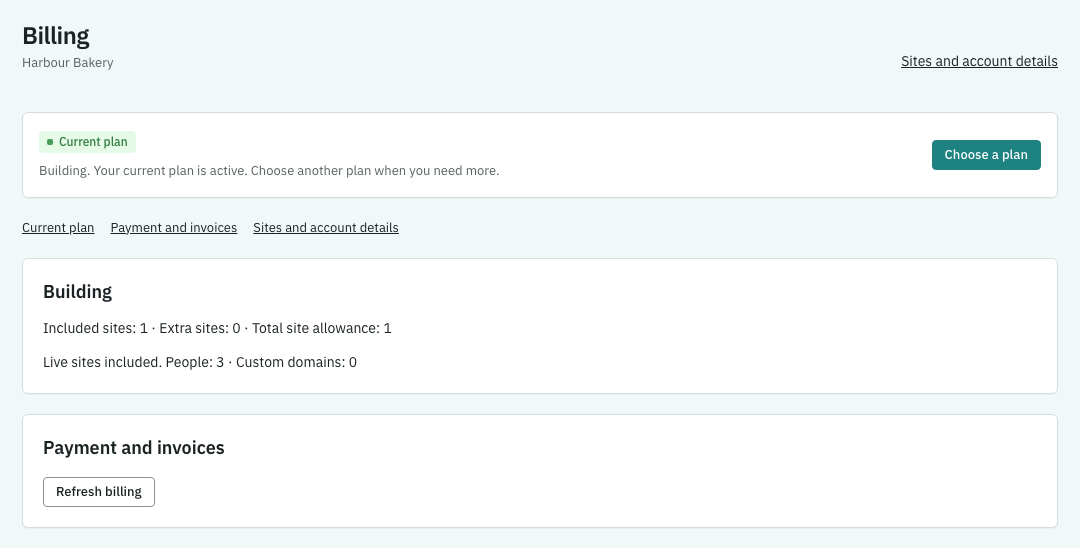
- Open Billing. Check Current plan and Payment and invoices. The screen shows your account’s current plan, allowances and payment state.
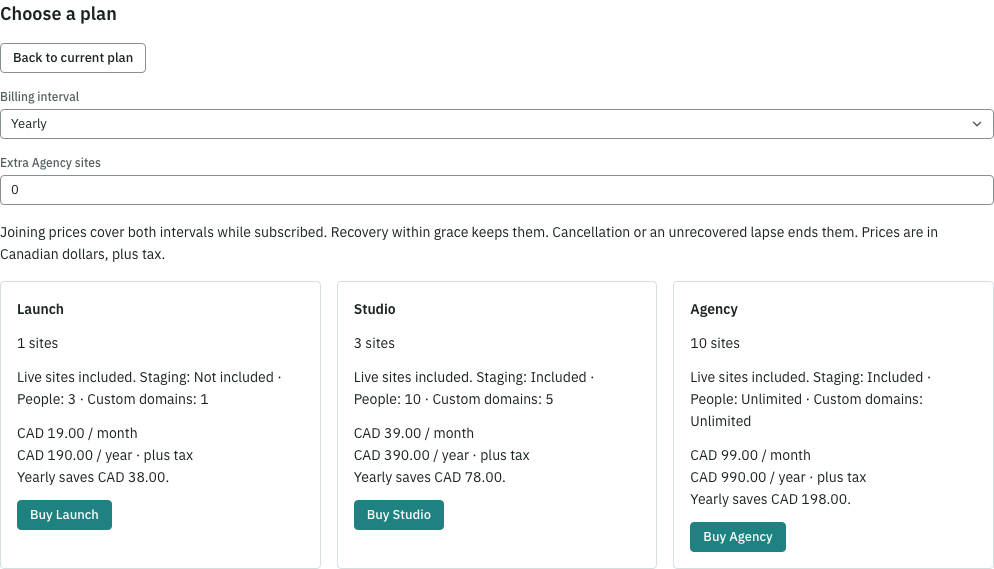
- To buy a plan, click Choose a plan and choose Pay monthly or Pay yearly (2 months free). The plans, amounts and allowances shown there are the current ones; you can also see the current plans at signup. Click Buy followed by your chosen plan’s name, then Continue to Stripe Checkout when the link is ready.
- If you already have a subscription, use Change plan, then Review followed by the plan’s name to review another plan. Read the amounts and effective dates before confirming. Extra access starts after payment is confirmed.
- To check payment details and invoices, click Manage billing, then Open Stripe billing when the link appears. Back in Keel, Billing checks for confirmation by itself. If confirmation takes more than a few minutes, click Check payment status.

Who can open Billing
The account holds the plan, Billing and sites. Only the account’s Owner can open Billing, in Keel’s admin at app.keelpage.com/billing. When a site’s Live allowance needs attention, its overview offers the Owner Review Billing. Billing suggests a plan from the current choices that allows Live sites; review its details before buying.
A site administrator or content creator sees Ask the account’s Owner to review Billing. Managing a site does not give access to the account’s Billing. If you open a site link ending in /sites/{id}/billing in Keel’s admin, the Owner goes to Billing; other site members see who can open it and Back to the site overview.
A site’s own web address belongs to that site. Opening /billing there may show a page the site created, its not-found page or its Coming soon page. Use Keel’s admin address to review Billing.
Show current plans on your own site
Designers can show Keel’s current plans on a public site by reading https://app.keelpage.com/api/signup/plans without credentials or extra headers. A sample with selected fields is {"plans":[{"key":"launch","name":"Launch","monthlyCadCents":2900,"includedSites":1}]}: the name is for display, the price is CAD cents per month, and includedSites counts included sites (null means unlimited). Use the returned values; these sample numbers are illustrative. Paid sign-ups can change the next buyer’s price; free sign-ups do not select or lock a paid price. The answer holds published information and no personal data, and can be cached for 60 seconds. Every response carries Vary: Origin for caches.
Keel must list the site’s address among the sites allowed to read plans; contact Keel to have it added. Once it is listed, Keel adds https://app.keelpage.com to the site’s allowed sources by itself, and Connected services shows it as “Added by Keel so this site can show Keel’s plan prices.” Keel’s own sites need no setup. This allows only reading the public plans; an OPTIONS request gets no cross-site allowance.
Delete or restore a site
Account owners and site administrators can delete a site from Web address and launch → Danger zone. Switch a Live site to Coming soon first, then type the site’s name. The dialog says, for example: “acme.keelpage.com is freed now, so another site can use it, and you can restore this site for 30 days.” Your own domains stay reserved for the site during those 30 days.
To restore it, open Plan and sites → Deleted sites and choose Restore. The dialog names the address it comes back on. If no one took its old address, it comes back there: “It comes back on acme.keelpage.com.” If another site took it, it comes back on the next free one: “It comes back on acme-2.keelpage.com, because acme.keelpage.com is now used by another site.” The message after restoring names the address again.
To delete it for good now instead of after 30 days, choose Delete permanently under the site in Deleted sites and type its name. Its content, files, backups, form entries, analytics and staging copy are removed, and this can’t be undone. Activity history and billing records stay. While the removal runs, the site shows “This site is being deleted permanently and can’t be restored.” Our storage provider keeps backup copies of the site’s files for up to 30 days and then clears them; you can’t open or restore them in Keel. AI helpers and bots can’t delete, restore or permanently delete sites.
If something goes wrong
If Checkout cannot open, use Try again; Keel checks for an existing payment before starting another. Returning from Stripe does not confirm payment. If confirmation takes more than a few minutes, use Check payment status, and Contact Keel if the problem remains. Only the account owner can manage Billing.