Getting started
Create your account or sign in, then open your site.
Steps
If the menu is hidden, click Open menu first.
- For a new account, open Create an account. Fill in Your name, Email and Business or account name. Read and accept the terms and privacy policy, complete the Security check if shown, then click Send my link. Open the email link and click Create my account.
- Already have an account? Open Sign in. Enter your Email and click Email me a sign-in link. Open the newest link in your email on the same device and click Continue. If you have a passkey, you can click Sign in with a passkey instead.
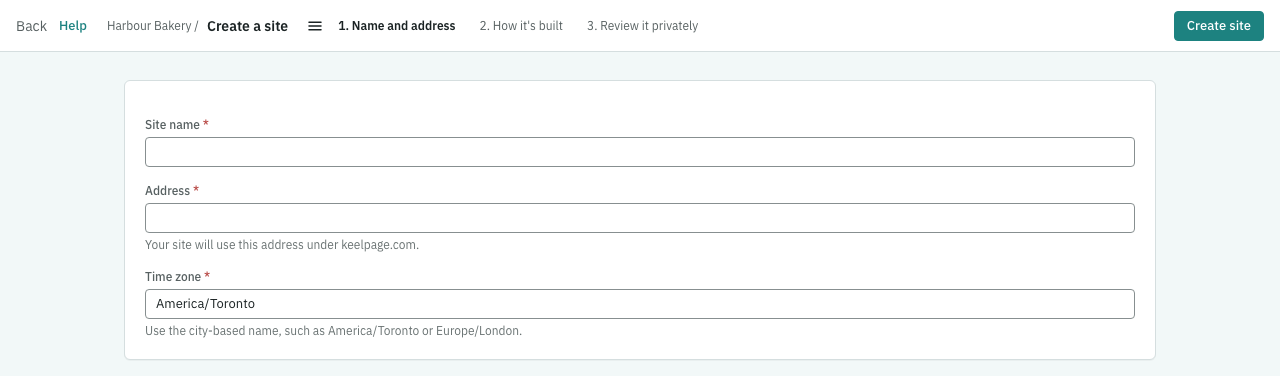
- You’ll reach Your sites, or Create a site if your account has no sites. Open a site to see its overview. If you joined through an invitation, use that email link first.

When Keel is working for you
Long work that Keel does for you shows in the bell at the top of every admin screen. The bell appears only while there is something to show, and its number counts what is running or waiting on you.
- Needs you lists what waits for your step. Each one links to the screen where you take it.
- Running and finished shows what is happening, how far along it is, how long it has run and when Keel last heard from it, for example “Last heard 4 s ago”. If it goes quiet for longer than usual, it says “This is taking longer than usual.”
- When something finishes, a message appears wherever you are in the admin, with a link to open it.
- If the bell says “Live updates are off right now”, Keel checks for news every 10 seconds instead; nothing is lost.
If something goes wrong
If the email hasn’t arrived, check junk mail and the spelling of your address. Wait until Send again is available, then ask for a fresh link. If sign-ups are closed or you still can’t get in, contact Keel.