Forms and the form inbox
Collect visitors’ answers and read what they send.
Steps
If the menu is hidden, click Open menu first.
- As a site administrator, open Forms and click New form. Enter its Name. Click Add the first field, choose Kind of field, fill in Label and click Add field. Use Add a field for more questions. To let visitors tick several answers, choose Checkboxes (pick any) and write one choice on each line in Choices. If you tick Visitors must fill this in, they must tick at least one.
- Choose Keep submissions in the inbox if you want to read answers in Keel. Check where email notifications will go, then click Save. The form preview shows what visitors will fill in. Saved form changes reach pages that already use it.
- Open a page, add a Form part and choose your form in its Form field. Preview and publish the page, then test it on the published site.
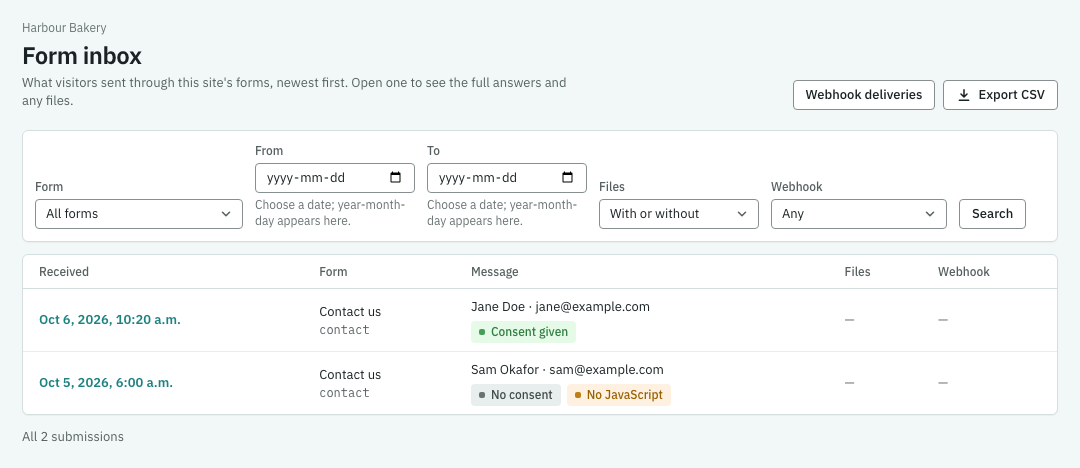
- Open Form inbox. Choose a form in Form to narrow the list and open a submission to read its answers. You’ll see only answers the form was set to keep.
Collect a web address
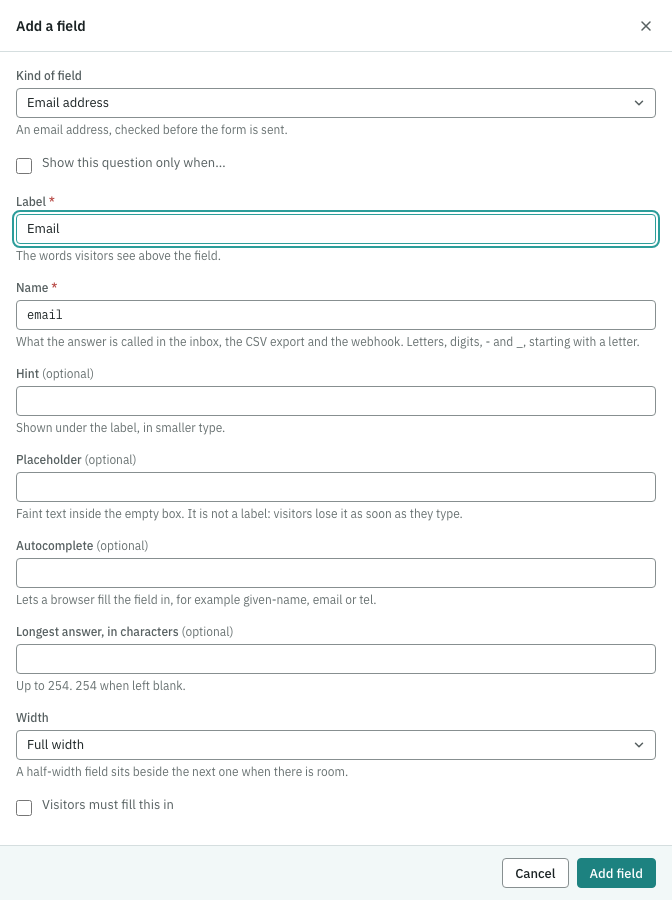
In Forms, open the form, click Add a field, then choose Web address under Kind of field. Give it a Label such as Current site address. Tick Visitors must fill this in only when an answer is required. Click Add field, then Save.
A web address question uses the browser’s web-address keyboard and checks the answer. Use a complete address such as https://example.com. An optional question accepts a blank answer. Invalid answers show a message beside the question and a link to it in the error summary, in Preview and on the site. Preview forms do not send.
To delete the question, click Remove beside Current site address, confirm Remove question when asked, then click Save.
For an AI helper, the same question is {"name":"website","type":"url","label":"Current site address","required":true} in a form’s fields. An invalid submission returns 400 naming fields.website. Helpers remove the question from the complete fields list in a versioned form update.
Form messages in your site’s language
In Web address and launch, choose Edit site details, choose Language, then Save. Cancel discards your unsaved name and language choices. For example, German (Germany) gives built-in form messages German words and shows a collection-list date as “21. Oktober 2026”. French (Canada) shows “21 octobre 2026” and French form messages. Languages without a translation table use English form messages. A form’s own message wording stays in use.
If something goes wrong
If the form won’t save, fix the fields named in the message. If page publishing asks you to choose a form, return to the Form part and select one. If a test is missing from the inbox, check that submissions are being kept, that you tested the published page and that spam protection accepted it.